1. Fill out the Liability & Policy Form if not previously completed
Highlighted button: 'Complete the EDC Liability & Policy Form Here' with an external link icon.
  1. Log into the Equipment Distribution Centre Portal
Login page for Toronto Metropolitan University with username and password fields.

Under New Reservation, there are two centres for:

Creative Production Facilities – This is where you will reserve rooms 

EDC – Equipment (RCC) – This is where you will reserve equipment 

  1. Go to “New Reservation” and select “Creative Production Facilities” from the drop down menu, then click “OK”

UI screenshot of a 'Patron Portal' with 'New Reservation' selected, showing a 'Select Center' modal. The modal has 'Creative Production Facilities' selected in a dropdown and the 'OK' button highlighted.
  1. Under New Reservation, enter your start date & time and your end date & time and click the check mark “All”
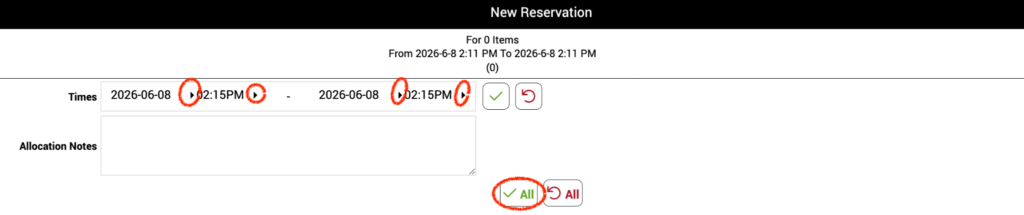
New Reservation form with date and time pickers for 2026-06-08 at 02:15 PM, and allocation notes.
  1. Under Contents, click “Browse Catalog”

An empty cart page with a highlighted 'Browse Catalog' button.
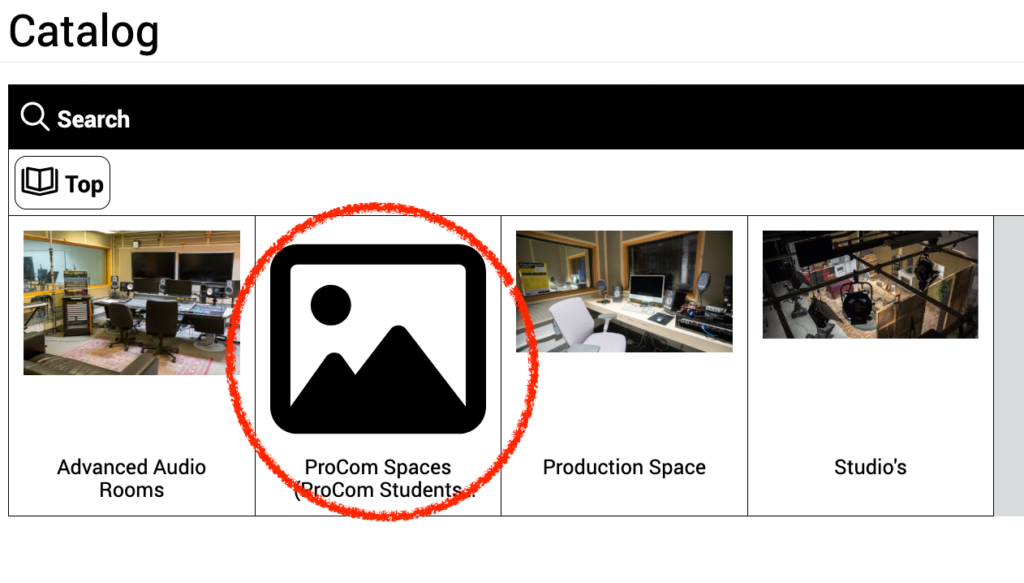
  1. Select “ProCom Spaces”
Placeholder image icon for ProCom Spaces.
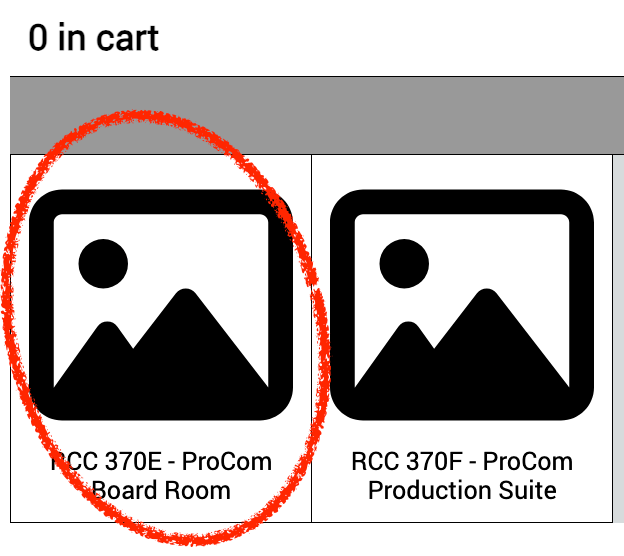
  1. Select “RCC370E – ProCom Board Room”
Interface showing '0 in cart' and two entries, 'ProCom Board Room' and 'ProCom Production Suite', with the first circled in red.
  1. Click the green cart icon.  

Then click “Return to Reservation”

A screenshot displaying an 'Items' list with 'RCC 370E - ProCom Boardroom', a highlighted shopping cart icon, and a highlighted 'Return to Reservation' button.
  1. If there are no errors, click “Submit Reservation”
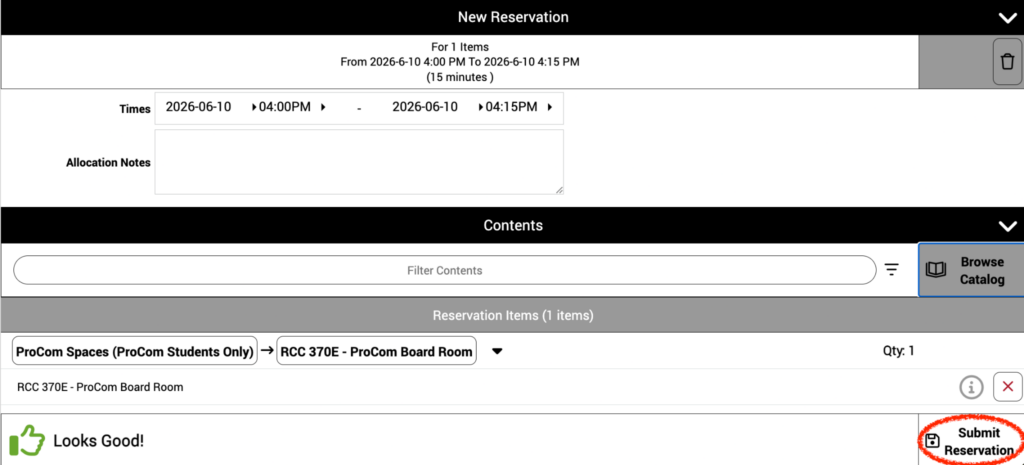
A reservation form displaying a 15-minute booking for the ProCom Board Room and a 'Submit Reservation' button highlighted in red.
  1. You should receive a confirmation email once the reservation is completed successfully!
Scroll to Top