
The Creative School uses Microsoft MFA for logging into WordPress sites, Adobe Creative Cloud, and Microsoft Office 365. Follow these steps to set it up for your @torontomu.ca account.
Prefer to Watch?
If you would rather follow along with a video tutorial, click one of the options below:
How to Set Up from your TMU Portal (Ideal for first-time setup)
How to Set Up from a WordPress Site Login Page (Ideal if you are currently trying to log into a WordPress site)
Step 1: Download the Microsoft Authenticator App
On your mobile device, install the Microsoft Authenticator app (available on the App Store or Google Play).
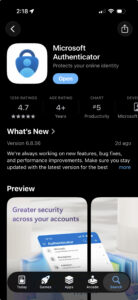
Note: This is different from the Google Authenticator.
Step 2: Activate MFA via the TMU Portal
- Go to my.torontomu.ca portal and click Personal Account under Self Service.
- Navigate to the Security section and select Microsoft Multi-Factor Authentication.
- Under the Microsoft MFA for youremail@torontomu.ca section, click the Set up Microsoft MFA button.
- Click the link Set up multi factor authentication.
Step 3: Link Your Account
- When the Microsoft page appears, log in with your
@torontomu.caemail and password, - When prompted with “More information required,” click Next.
- Choose your verification method:
- Using Microsoft Authenticator: Click Next.
- Using a different app: Click “I want to use a different authenticator app”.
- Open your authenticator app on your phone, add a new work or school account, and scan the QR code displayed on your screen. Click Next.
- Enter the 6-digit code shown on your phone into your computer screen and click Next.
- When you see the Success message, click Done.
Troubleshooting
“You don’t have access to this” Error Message
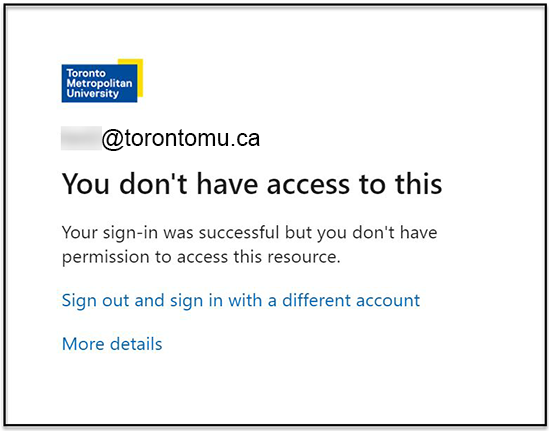
If you see this error message, you need to reactivate your Microsoft account:
- Go back to your my.torontomu.ca portal and click Personal Account under Self Service.
- Navigate to the Security section and select Microsoft Multi-Factor Authentication.
- Click Proceed to Microsoft MFA Setup to automatically reactivate your account.
- Still getting an error? Try using an incognito window, different browser or signing completely out of your Microsoft account and signing back in. If you have another Microsoft account associated with a different email, it will interfere with the set up of the TMU one.
Still Having Trouble?
If you get stuck and the steps above are unsuccessful:
- Check out the CCS setup guide
- Email production@torontomu.ca
- Contact CCS (Computing and Communications Services) during working hours at help@torontomu.ca or 416-979-5000, ext. 556840 for students and 416-979-5000, ext. 556806 for faculty/staff. Have your Student/Employee number ready as they will verify your identity to reset your account.