
The Nexus tutorials page is a resource designed for students, staff and faculty at The Creative School. It offers a wide collection of on-demand videos, step-by-step guides, and safety training covering various disciplines. Key tutorials include equipment walkthroughs (such as operating cameras and audio recorders), Makerspace machinery training, creative software tutorials for applications like Adobe Creative Cloud and Miro, and essential IT setup guides.
This resource is an invaluable tool for enhancing practical skills and preparing for coursework. It allows students to complete required safety certifications independently and master specialized equipment or design software at their own pace.
Step 1: Logging in
Please make sure you’ve set up your Microsoft Multi-factor Authentication prior to signing in. If you haven’t done so, please refer to the page on Setting Up Your Microsoft Multi-Factor Authentication (MFA) for help.
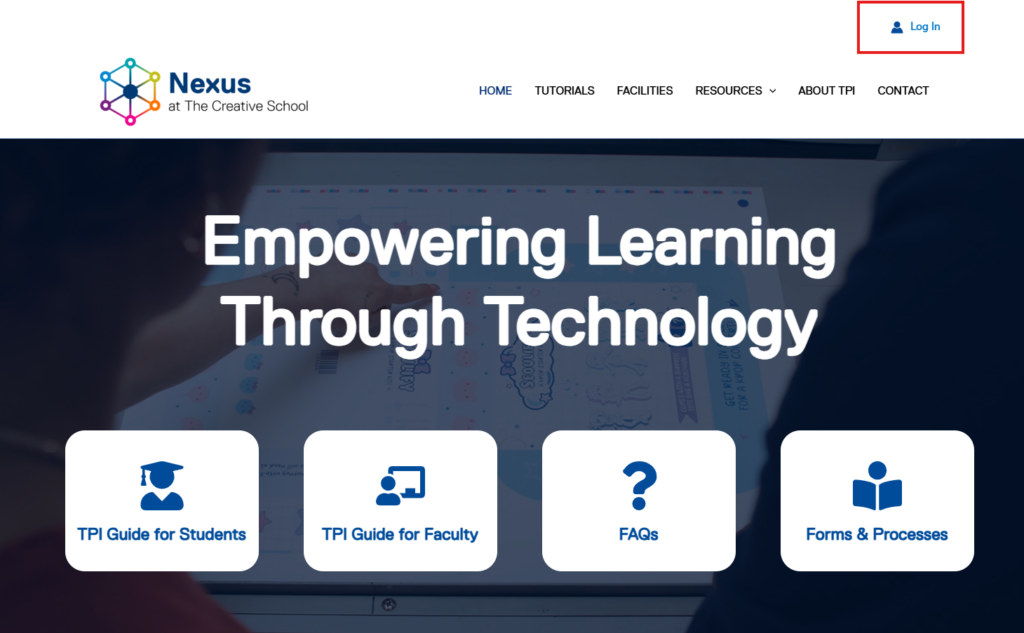
- Go to nexus.thecreativeschool.ca
- Click on the Log in button in the top right of the page
- Sign in using your @torontomu.ca email address and password.
- Enter your Microsoft Multi-factor Authentication (MFA) code.
- Once logged in you’ll notice the Log In button has changed to say My Account.
2: Viewing Tutorials
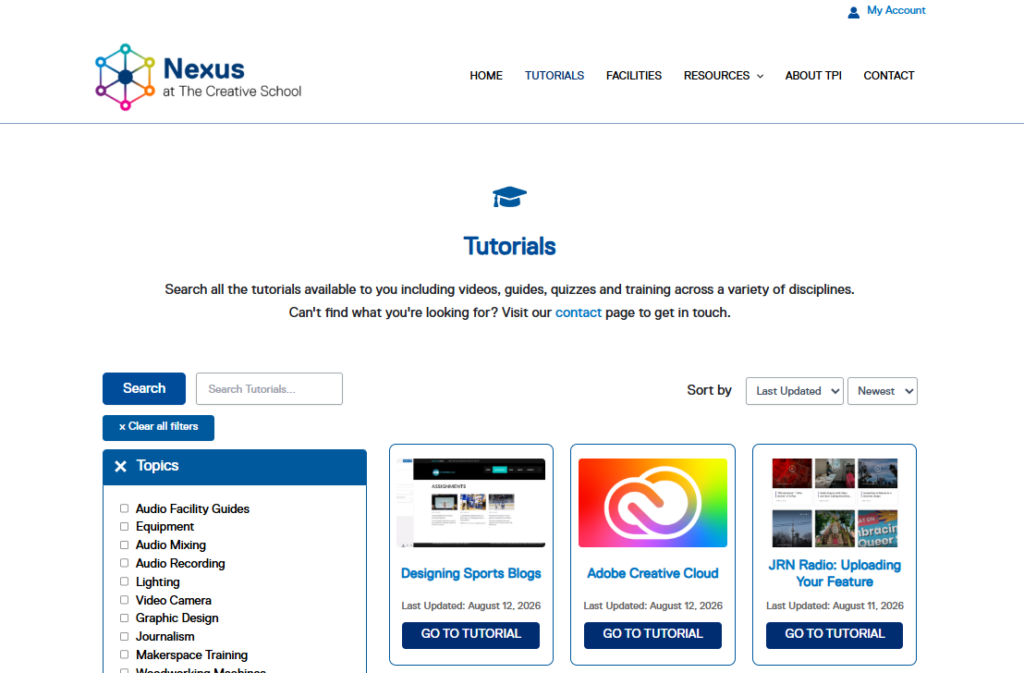
- Click on the Tutorials button in the navigation bar.
- Scroll through the page to browse the various tutorials. Use the search bar to locate a specific tutorial or try out the filters on the left hand sidebar to narrow down the kind of tutorial you are looking for.
- You can also access tutorials from direct links shared by email or through D2L.
Troubleshooting
“Your sign-in was successful but you don’t have permission…”
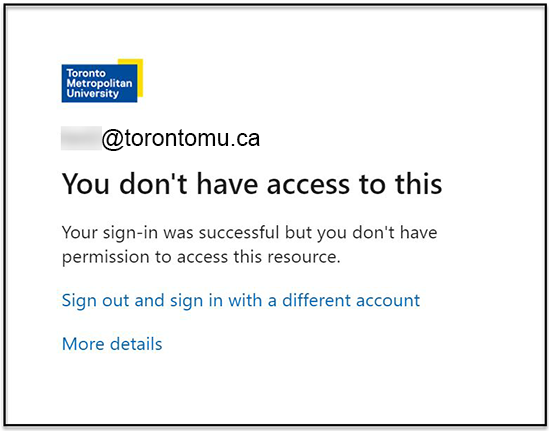
If you see this specific error message, you need to reactivate your Microsoft account:
- Go back to my.torontomu.ca -> Personal Account.
- In the Self Service box, go to Security -> Microsoft Multi-Factor Authentication.
- Click Proceed to Microsoft MFA Setup to automatically reactivate your account.
- Still getting an error? Try signing completely out of your Microsoft account and signing back in.